While LG’s 27GL850-B is still hard to get, it’s display panel is available for other brands to use in their design. Currently the Lenovo Legion Y27Q-20 and Viewsonic’s XG270QG are available for purchase. Let’s look at their key features.
| 27GL850-B | Y27Q-20 | XG270QG | |
| Adaptive Sync | Freesync/G-Sync compatible | Freesync/G-Sync compatible | G-Sync |
| Refresh | 144Hz | 165Hz | 165Hz |
| USB ports | 2 (back) | 3 (2 side, 1 bottom) | 3 (bottom) |
| Stand | Height, tilt, pivot Metal and plastic | Height, tilt, pivot, swivel Fully metal | Height, tilt, pivot, swivel |
| Other | Audio out VESA100 | Audio out/mic in VESA100 Headphone hook Low blue light mode | Audio out VESA100 Headphone hook, Low blue light mode Mouse cable hook RGB features Hood |
| MSRP | $499.99 | $549.99 | $675.99 |
It will be interesting to see if the G-Sync module in Viewsonic’s offering will make a difference to overdrive behaviour at lower framerates. Note that there is also a Y27GQ-20 ($629.99 MSRP) available which has a G-Sync module if that’s your requirement. This display does only come with an 8bit TN panel though.
Unboxing and features
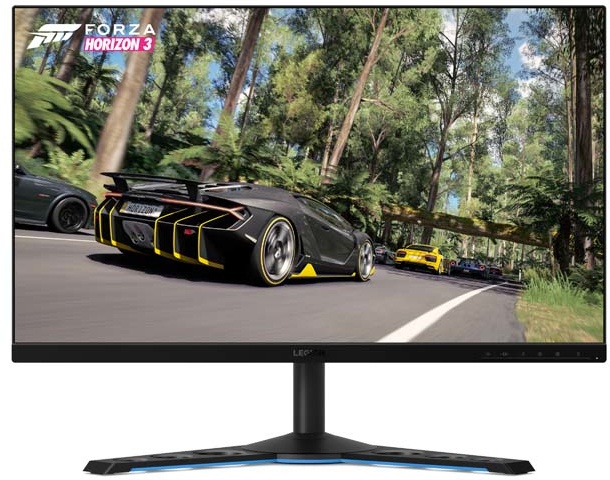
Unboxing the monitor is a nice experience, the monitor is packed in styrofoam and has a box with a handle and a lid that’s able to close again which makes transporting the monitor easier. In the box you’ll find:
- Displayport 1.4 cable
- HDMI 2.0 cable
- USB 3.1 type B upstream cable
- Power brick
- Power lead
- Documentation
The base of the stand and it’s upright will have to be assembled with an integrated screw, after this it’s possible to attach the panel to it’s base with some locking hooks. No tools are required. The base feels very heavy and strong, it’s all metal. The bottom plate is a thick piece of metal with holes in it and a blue underside which looks quite pleasing and unique.
The display itself is technically the same as in LG’s 27GL850. It features a 1440p resolution, 165Hz refresh rate at 10bits and internally processes this at 8bit+frc. It’s contrast ratio is stated at 1000:1 but given the performance of LG’s offering it’s expected to be around 850:1.
Mounting the display to a VESA100 arm went well but the cables attach to the monitor quite low at the back of the display. The connections are oriented vertically so when mounted to an arm, you will notice the USB upstream and DisplayPort cables exiting from the bottom. Getting some right-angle adapter should fix this if you’re after a clean setup.
First impressions and build quality
Turning on the monitor for the first time greets you with a Lenovo logo and a vibrant image due to it’s wide color gamut support. The interface is controlled by using the front buttons, there are six in total of which one is reserved for a power toggle. They feel nice and clicky. When the menu is closed, the five buttons will act as shortcuts to the following settings.
- Game settings (profiles, overdrive and on screen framerate)
- Input toggle
- On screen refresh rate options
- Birghtness and color settings
- Main osd menu
All pages can be accessed from all shortcuts by backing out of the current page. It would’ve been nice if the buttons could’ve been assigned custom functions. I personally do not enjoy the menu system all that much but after setting up the monitor you’re not likely to use it all that much. I only wish there would’ve been a way to quickly toggle sRGB mode. I do enjoy that the menu gives you an option to set a timeout so that it stays open for longer when adjusting settings.
There is one usb port on the underside and two on the left side of the monitor. There is also a 3.5mm audio jack on the left which can be used as a headphone TRS output as well as a TRRS headset connection providing a 24 bits at 48KHz microphone input. This input also seems to provide some form of echo cancelation. The input provides some decent quality.
Issues
An issue with the OSD I noticed is that it won’t show if your refresh rate is set to anything below 100Hz. I also prefer to have most of the USB ports on the back of the display. Having two on the back gives the option to plug in a keyboard and mouse which leaves one on the left free for charging a phone. Lenovo has chosen to have two on the left side and one on the back, not a huge deal at all but noteworthy.
Another minor issue is that the monitor, on NVIDIA at least, defaults to 8bits per channel even though it can do 10bits at 165Hz. Going into the NVIDIA control panel and setting the color settings to manual allows you to enable 10bpc. You’ll be hard pressed to see the difference though unless you like staring at gradients.
Picture quality
Out of the box
The monitor comes preset with Game mode set to Off, these modes are different profiles and all have their own character. Besides Off there are: FPS1/2, Racing, RTS and Game 1/2. All modes basically lock out every other setting in the monitor so leaving Game mode to Off will give most flexibility. The monitor offers controls for Brightness, DCR(dynamic contrast), Saturation, Contrast, Color Temp. and Dark Boost. It does however lack a mode to change gamma, so unless Lenovo decides to add this to a future firmware update you’ll be stuck with the default gamma. Let’s hope it’s set right then!
sRGB mode
Let’s first take a look at sRGB mode which should be factory calibrated, this mode locks out all settings except brightness.
| Whitepoint | 6423K |
| Contrast | 863:1 |
| Average dE | 0.88 |
| Maximum dE | 1.54 |
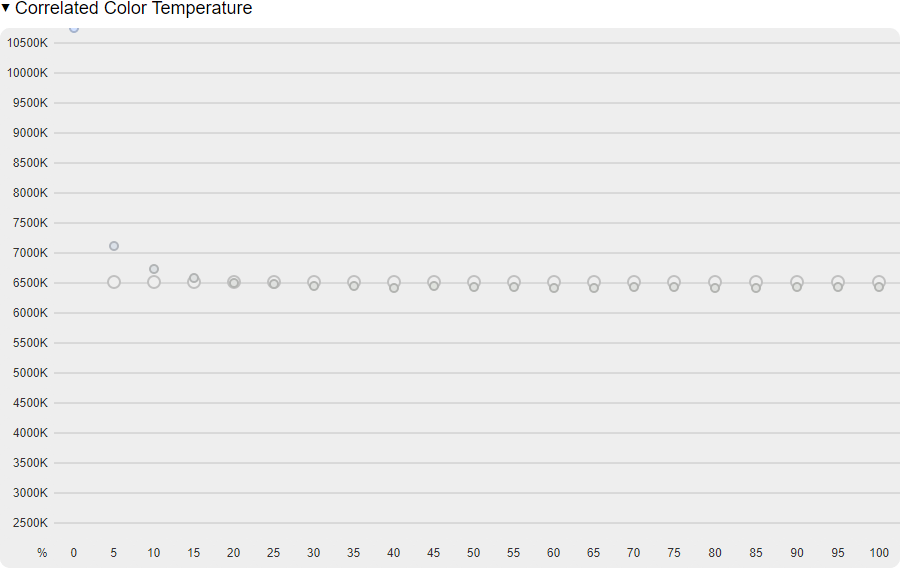

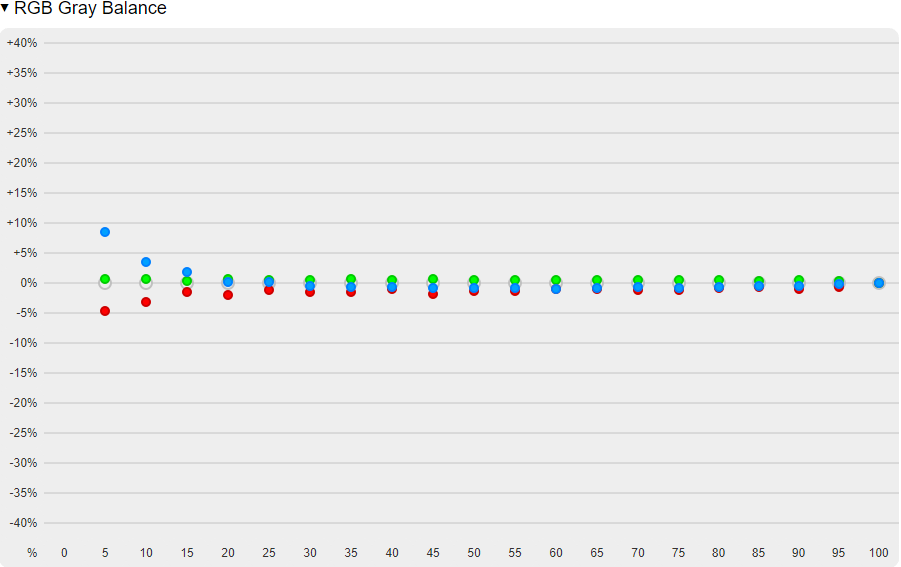


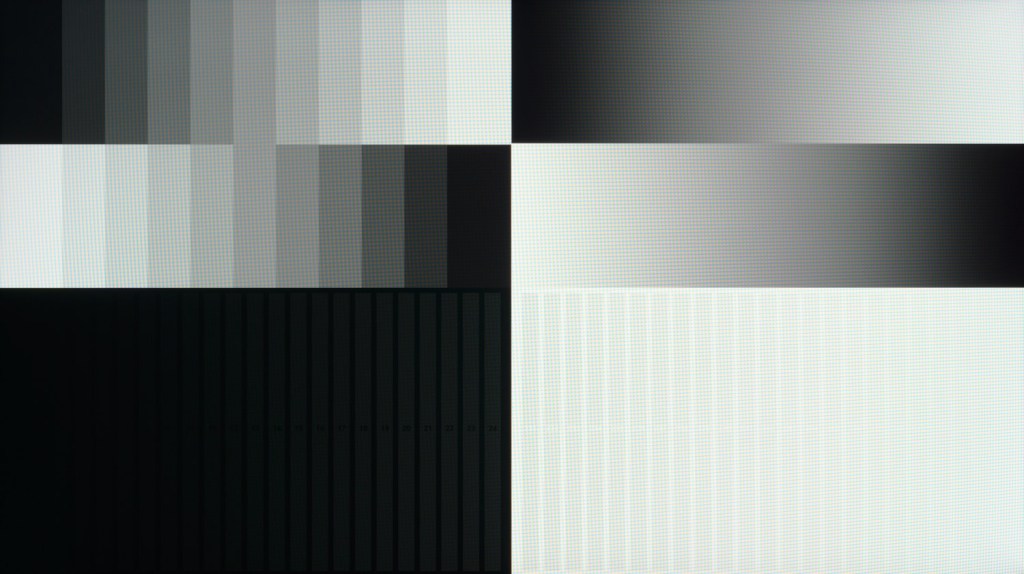
These results are pretty great, the monitor has no problems display sRGB content in this mode. The only slight problems here are a slight green tint in greyscales and slightly elevated gamma values near pure white. This means that highlights might get clipped slightly as seen in the last picture above which was taken with a camera.
It’s below average contrast ratio for an IPS display is expected with this panel and even though it’s a bummer, it’s very difficult to see the difference between this panel and an IPS panel that has a 1000:1 contrast ratio or higher.
Unclamped gamut
Comparing the uncalibrated display against DCI P3 and sRGB yields worse results. Setting the whitepoint required me to set the Color Temp. to RGB 100/97/100 since the default values gave a green hue, setting the display to it’s Normal white point setting also resulted in a better whitepoint.

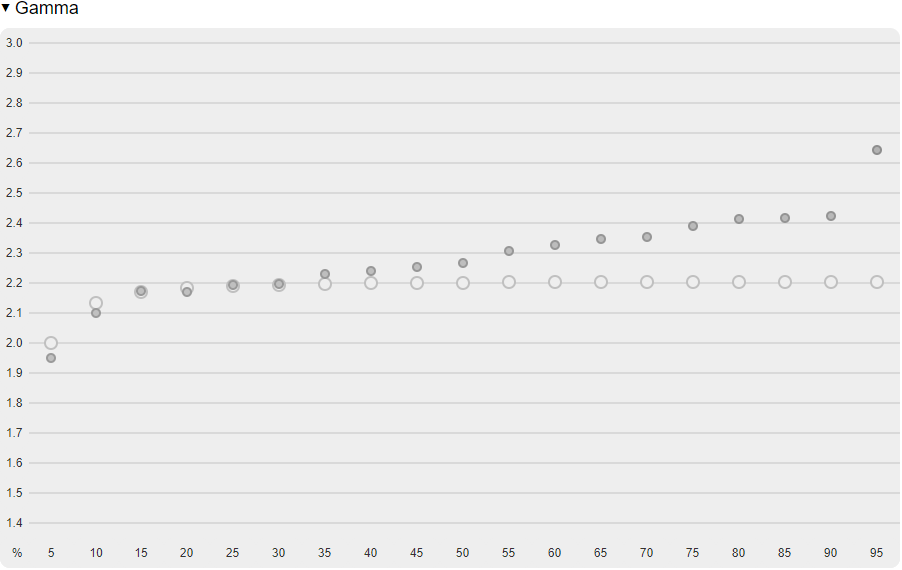

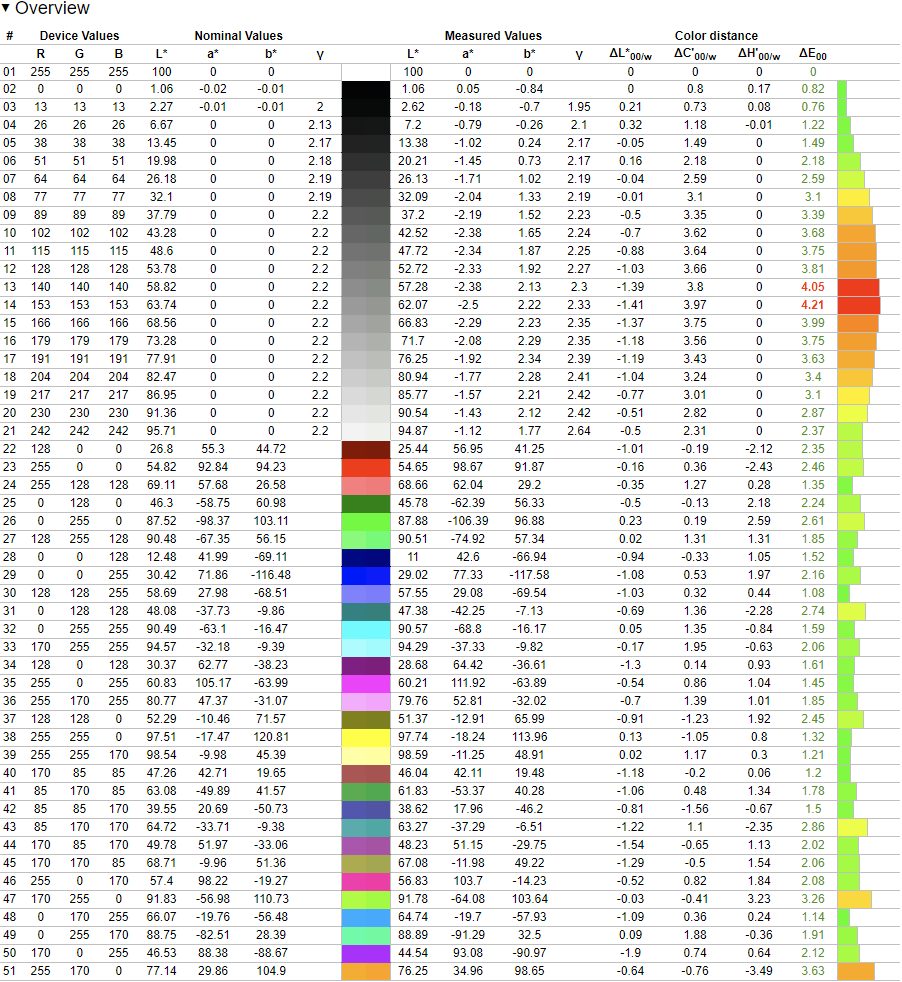
Color performance compared to DCI P3 is actually pretty good but gamma performance falls short here.
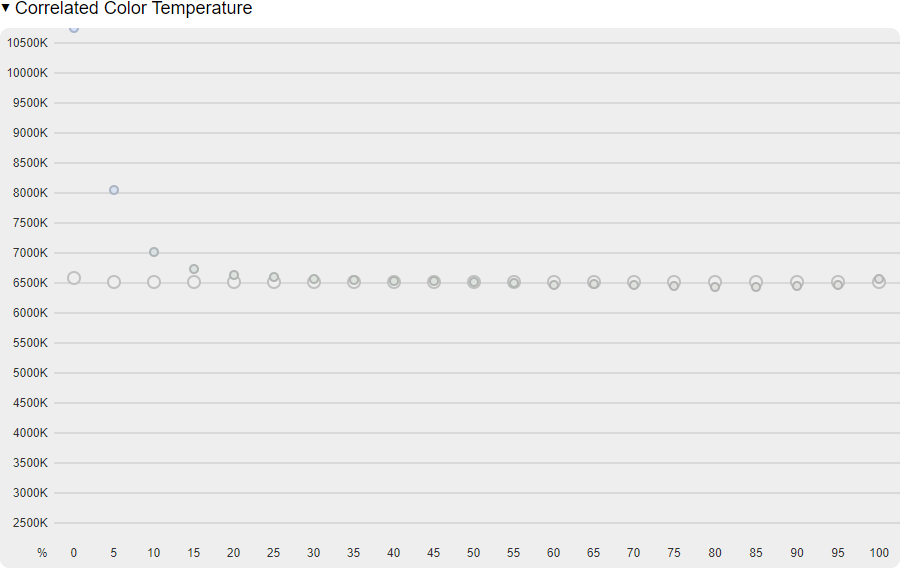
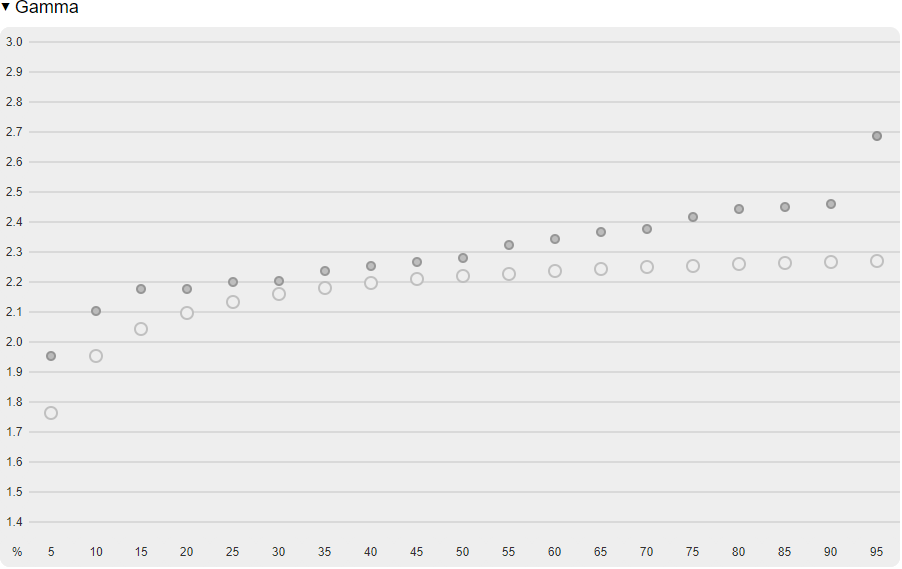

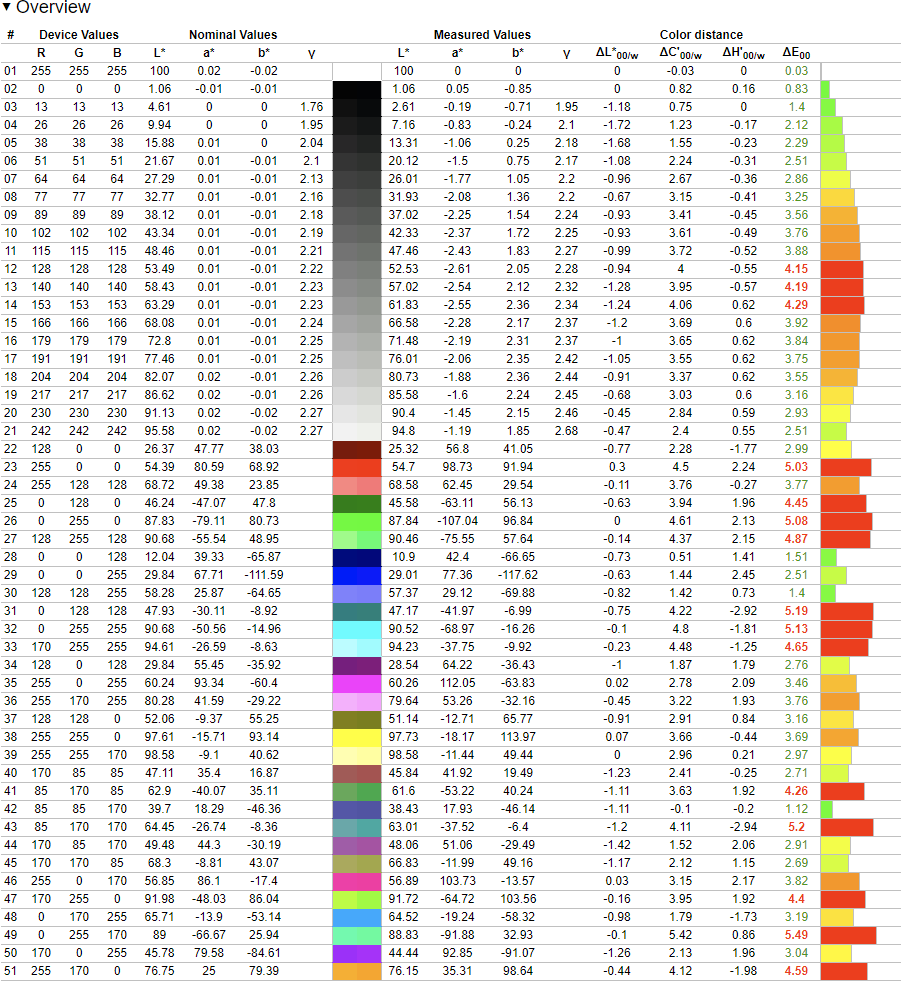
Comparing the uncalibrated display to sRGB also shows a pretty poor result but this is to be expected when comparing an unclamped gamut to sRGB. The gamma respons is still pretty poor though. Let’s see how calibration can improve results then.
Post calibration
The monitor has been calibrated with an X-Rite i1Display Pro colorimeter using DisplayCAL software. DisplayCAL is using the “LG 27GL850 by 4KM for newDP (i1 Pro)” correction with an sRGB gamma target. Note that this is only the gamma response (luminance) and not clamping the color gamut.
Calibrating the display is pretty straightforward since there is not a lot you can and should adjust. sRGB mode is set to off, contrast is set to 85 and reducing brightness to around 20 will give around a 120cd/m2 brightness level. Measuring and profiling then gave the following results.
| Contrast | 840:1 |
| sRGB gamut | 99.8% |
| Adobe RGB gamut | 85.9% |
| DCI P3 gamut | 94.8% |
| Min brightness | 62cd/m2 |
| Max brightness | 380cd/m2 |
Uncalibrated greyscale 
Calibrated greyscale

Display vs sRGB coverage 
Display vs DCI P3 coverage 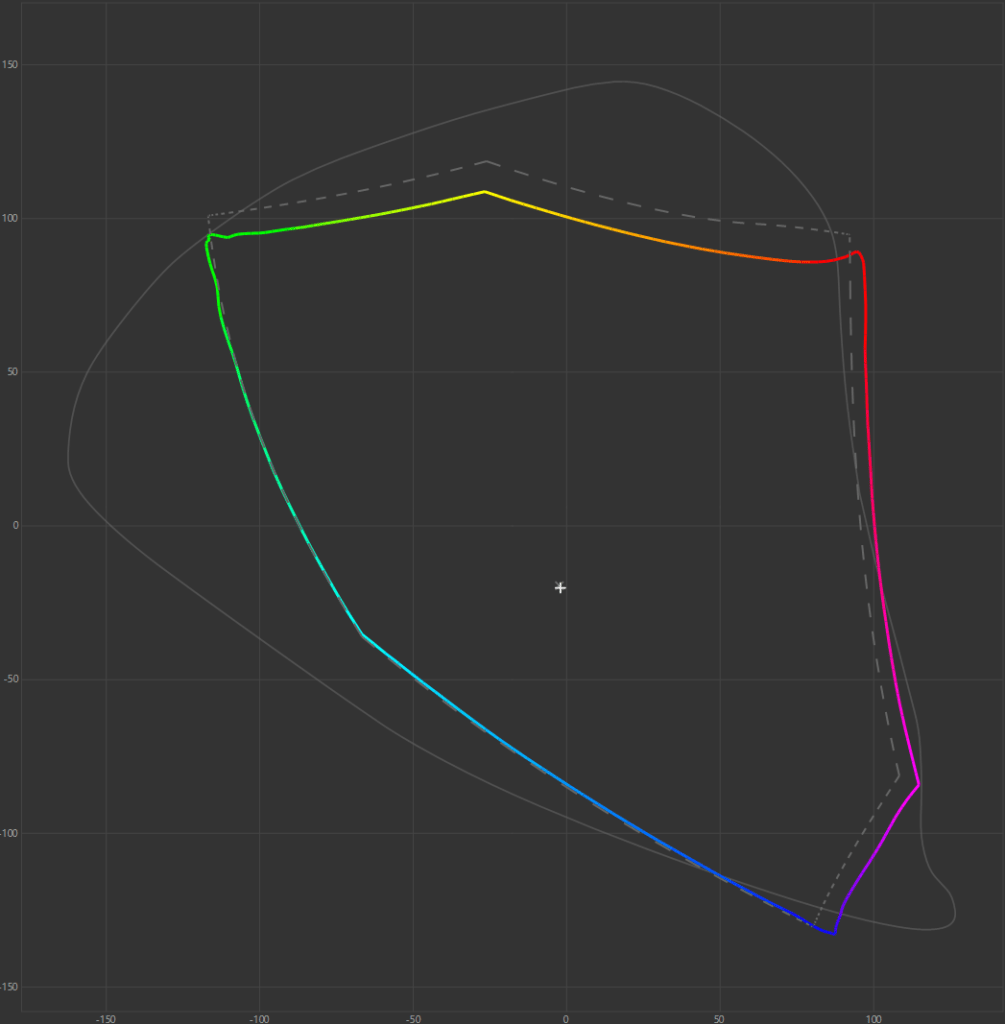
Display vs Adobe RGB coverage
The green tint in the greyscale response has been corrected. Comparing the color gamut to sRGB shows that it’s easily capable of covering the entire gamut. Looking at DCI P3 shows that it can cover most of it’s gamut but that it lacks some saturation towards green and cyan. Adobe RGB is also covered pretty well here with slight under saturation in the reds and greens which results in slightly under-saturated yellows.
Compared against other color spaces
Measuring this profile against several color spaces gives the folowing results. Note that Adobe RGB has several high dE spikes since the monitor is technically not able to display the full saturation targets of Adobe RGB.
| sRGB | DCI P3 D65 2.2 | Adobe RGB | |
| Average dE | 0.34 | 0.59 | 1.16 |
| Maximum dE | 1.12 | 1.4 | 5.35 |
Below are parts of the measurement report for sRGB, DCI-P3 and Adobe RGB verifications showing more detail.
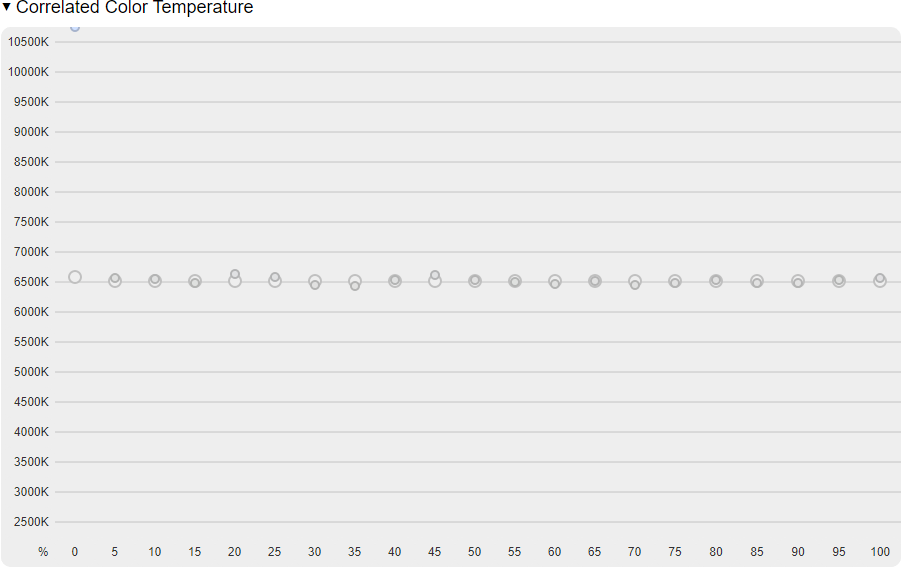
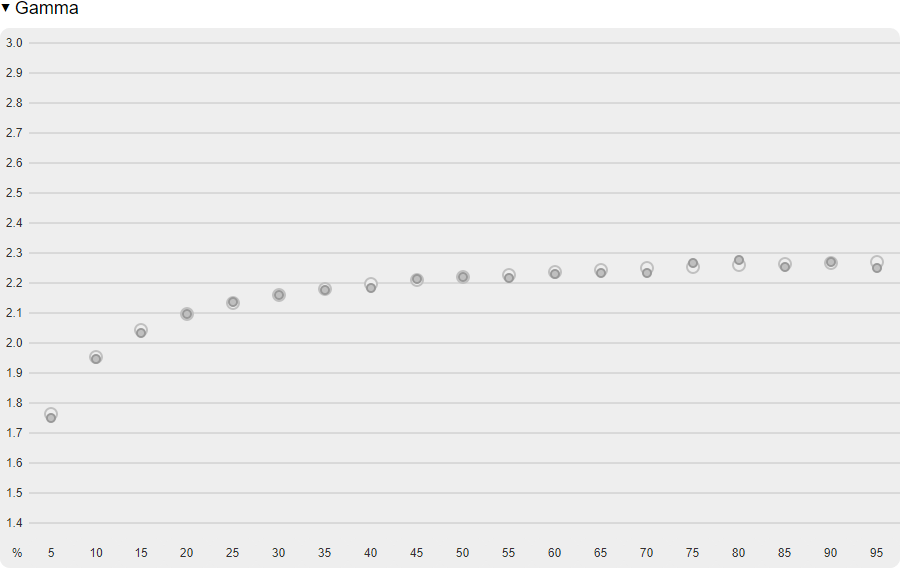

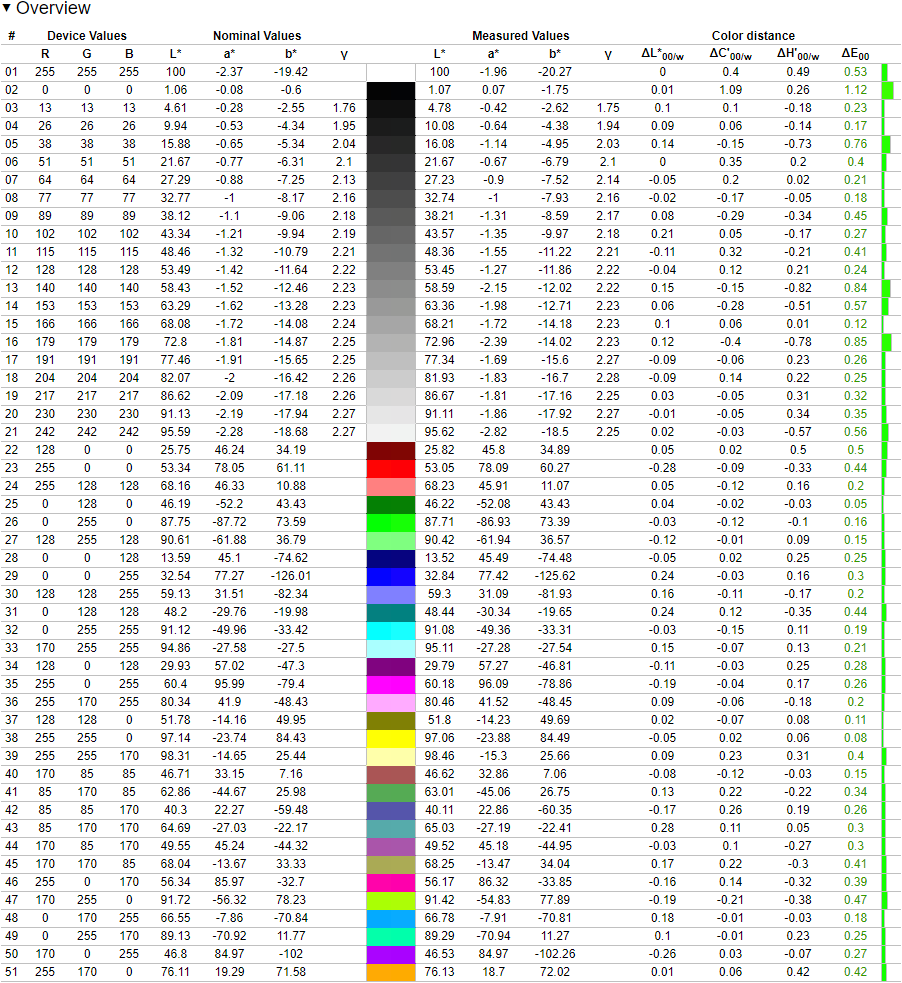
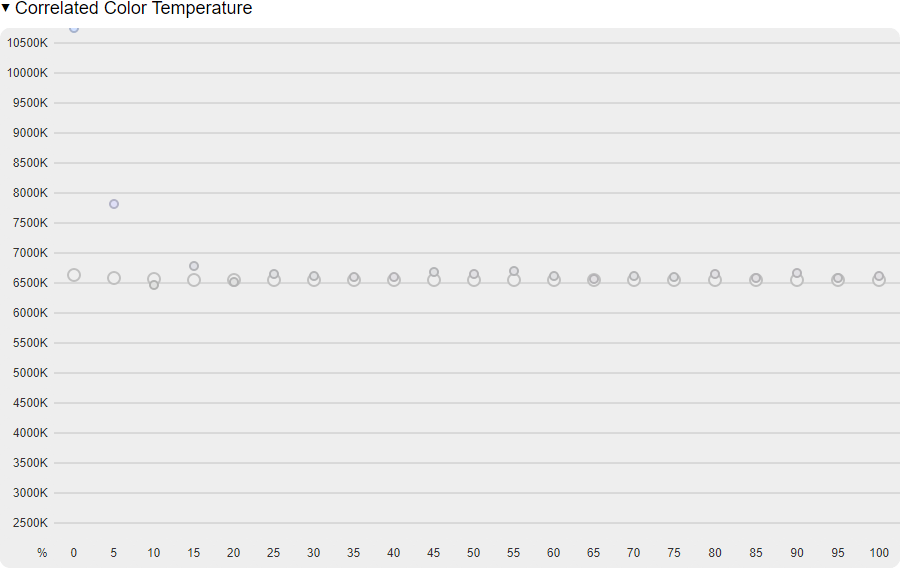
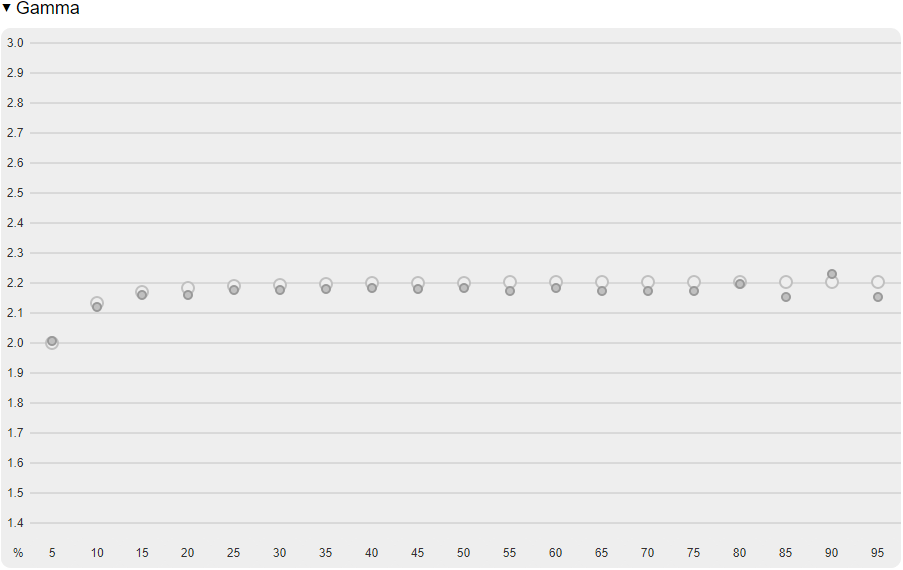

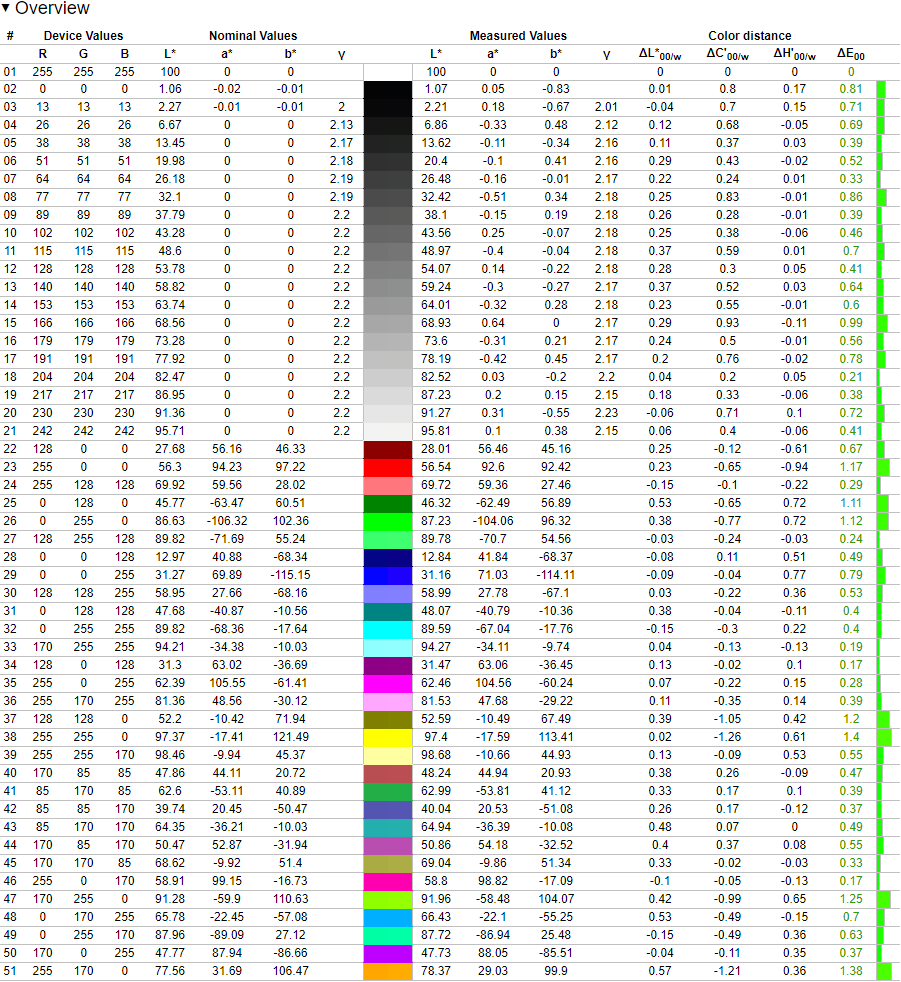
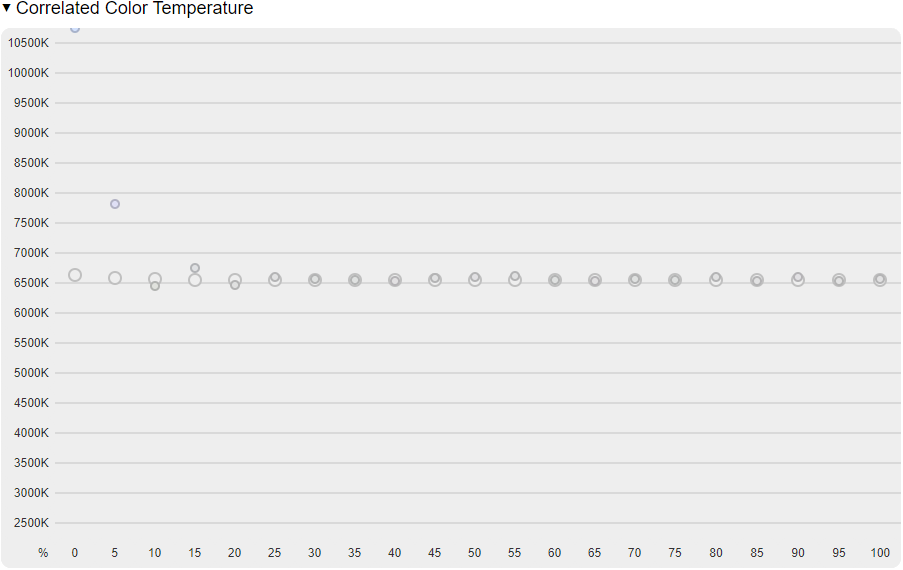
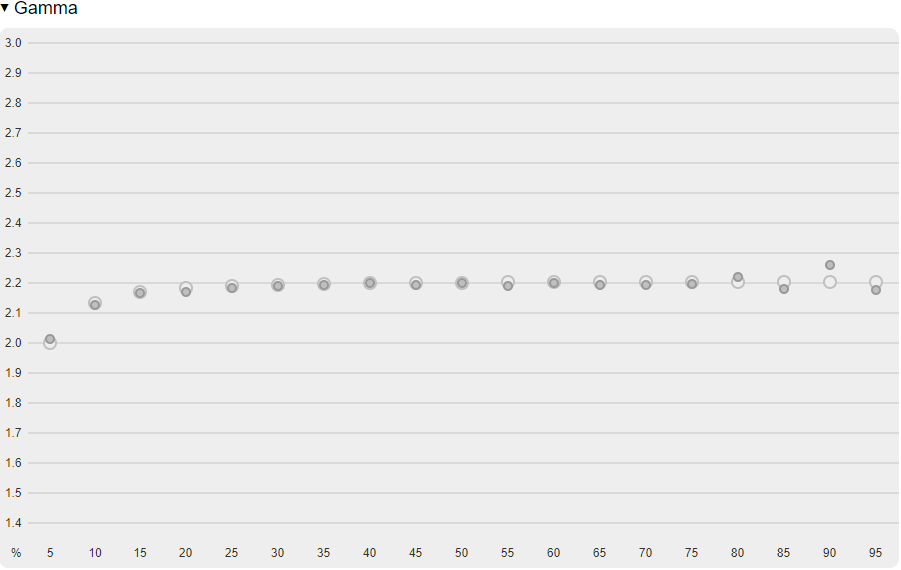

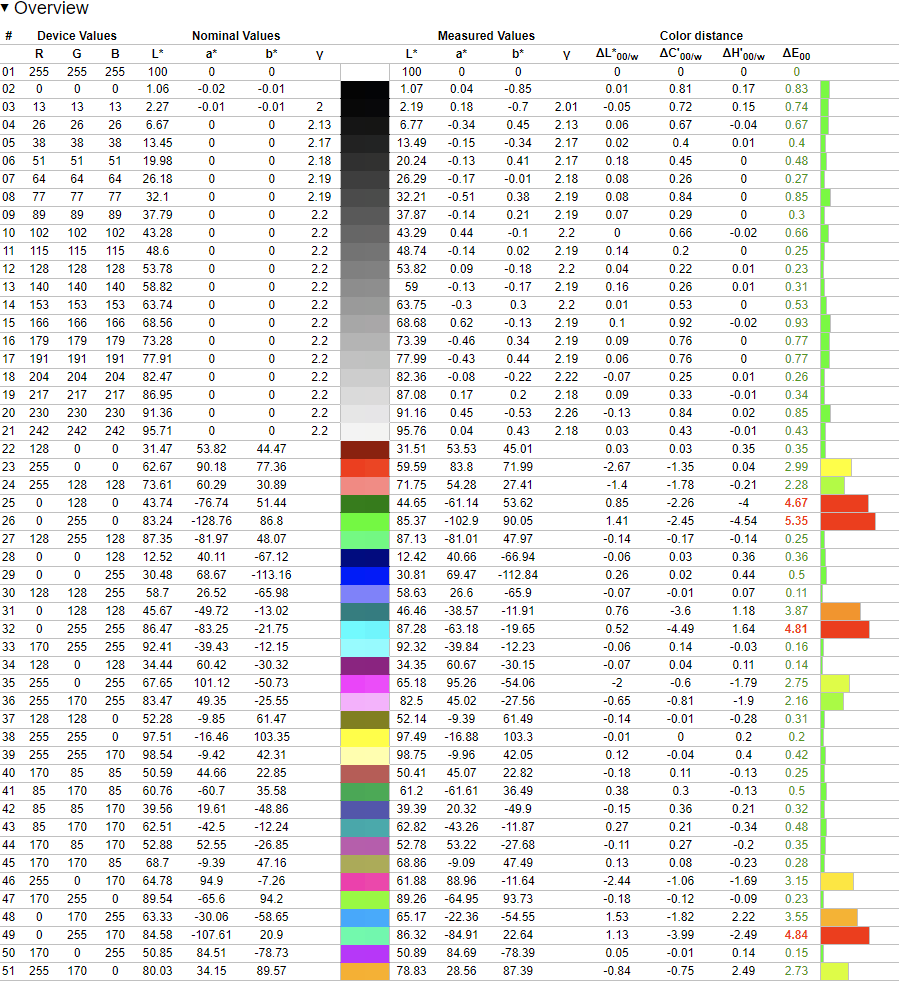
These results are excellent and anyone who has access to a calibration device should have a great experience with this monitor while doing color-critical work.
Color profiles
Several people asked me if I would be willing to share my color profile so here they are. I should warn you that every display will have it’s own characteristics so my color profiles will probably not be 100% accurate for your display. I would recommend you to use DisplayCal to import and manage these profiles, this way you’re sure that the profile will always be applied. Simply unpack the supplied 7z archive, download and install DisplayCal, ignore ArgyllCMS installation and go to file, load settings and import the .icm file. Then click on install profile next to the drop down menu and set as system default. You can find my two profiles here. One is for sRGB emulation mode and the other is for wide gamut mode, R,G and B values are in the filename.
Display uniformity
My unit has a very uniform image with only the left side showing slight vignetting when looking at a uniform color.





Backlight bleed
Bleed can show if a panel isn’t mounted in it’s chassis well since pressure points on the panel will show through as dark spots or highlights. Lenovo has done an great job on my unit as hardly any glow is visible. When looking at a black screen at a 2s shutter speed (compared to 1/4th on the uniformity black image above, so overexposed by 3 stops), slight clouding can be seen with most of it visible at the bottom left and top right. In person though, I can only see the bottom left bleed on a black background. This result is better than both 27GL83A’s I’ve tested before.

Off-angle glow
IPS display all suffer from glow when you look at them from an angle. Below are two images where the first one shows a worst-case scenario (45 degrees up and to the side). This image shows a dark red/brown glow which is comparable to the 27GL83A I reviewed earlier. Looking at the display from a 45 degree angle to the side shows very little glow.

Glow at a 45/45 degree angle 
Glow at a 45 degree angle
Motion handling
This monitor supports up to 165Hz, interestingly LG didn’t include this setting in their own product. The monitor also support Freesync and G-Sync compatibility. Connecting it to my Nvidia GTX1080Ti enabled G-Sync automatically but there is one issue currently.
G-Sync issues
The monitor suffers from moments of having a black screen when framerates vary a lot. It looks like the display has issues when switching between LFC mode to regular mode and from regular to 165+ Hz. First time I noticed this I was in a game of CS:GO and while opening the buy menu, the screen went black. This to about three seconds and then it returned. For more investigation I ran Battlefield 5 at 200% resolution sclale and max details which resulted in a 30-50fps range. While playing I noticed several moments where the monitor when black and even mentioning “Cable not inserted”. When the display then went into standby it got connected again and everything resumed as normal until the next time. I’m not sure whether Lenovo is responsible or NVIDIA has a driver issue currently. My unit is running firmware LG1.1.
To my understanding, most/all of the people with this issue are running a 10-series NVIDIA gpu so AMD and 16/20-series owners might have no issues.
Turning off G-Sync also fixes the problem but will of course introduce tearing.
Motion clarity
So does 165Hz on this display have any benefit compared to 144Hz? I do not have the equipment to measure response times but this website does and they have measured the average response time to be 5ms, down from 6.02ms on the 27GL850. For a 165Hz mode to have any benefit, pixel response times have to be 6.06ms or below so being able to push the average response time down should help here.
The display has three modes of overdrive Off, Normal and Extreme. Interestingly, the extreme mode doesn’t look too bad when running at 165fps but this quickly changes when the framerate lowers as much inverse ghosting appears.
In order to compare how different modes compare I’ve takes several photo’s. They were taken at 1/60th for 144Hz and 165Hz and 1/30th for 60Hz. Several pictures were taken while panning the camera in sync with the ufo’s and the best ones were picked for comparison.
165Hz

165Hz Normal 
165Hz Extreme
First let’s take a look at 165Hz, the image remains sharp and as you can see setting overdrive to Extreme adds some additional clarity but also introduces some inverse ghosting. This is pretty minimal though so playing a game 165fps or more is definitely possible with this setting set to extreme although artifacts will be visible.
144Hz

144Hz Normal 
144Hz Extreme
Switching over to 144Hz, the image remains very sharp in motion but having overdrive set to Extreme introduces a lot more inverse ghosting to the point where I would consider this unusable.
60Hz

60Hz Normal 
60Hz Extreme
Dropping all the way down to 60Hz will of course introduce quite a lot of blur. These picture were taken at 1/30th of a second instead of 1/60th as to keep the shutter speed roughly half of the refresh rate. With overdrive set to Normal the image remains quite stable and no overshoot is visible. Setting overdrive to Extreme is completely unusable at this refresh rate though.
Response times compared to 27GL83A-B

Lenovo Y27Q-20 
LG 27GL83A-B
When looking at a side-by-side comparison between it’s noticable that Lenovo’s further tweaks to overdrive has indeed resulted in a slightly clearer image in motion. The black lines on the ufo have slightly more contrast which is also true for the complete image. This is also noticable when comparing both in person even though both displays are already excellent in this regard.
Conclusion
Lenovo’s LEGION Y27Q-20 is a very capable monitor, I feel they have improved over the 27GL850 and 27GL83A by improving motion handling as well as a nicer stand. Color performance is excellent in both wide-gamut (after calibration) and sRGB applications. The current issues with NVIDIA’s G-Sync compatibility are a concern though and I hope Lenovo or NVIDIA will be able to provide a fix in the near future. It would also be great if the monitor would come with some form of gamma controls since stock settings are not ideal.
| Pros | Cons |
|---|---|
| • 165Hz is a nice bonus over LG. • Slight improvement in motion clarity because of this and better tuning. • Great all-metal stand. • sRGB mode is very accurate. • Excellent performance after calibration. • Integrated 3-port-USB hub. • 3.5mm headphone jack with mic input | • G-Sync issues on 10-series NVIDIA. • $50 more expensive than 27GL850. • Out of box gamma results not great. • OSD not showing under 100Hz. • Cable management difficult due to low connection points. |
I do this stuff for my own enjoyment but if you are feeling generous you can buy me a cup of coffee.




 Motherbear reviews stuff